Make a Pelican Blog
How to setup Pelican to build a blog with Travis-CI
The goal of this post is to use Pelican, a static-blogging Python package, and Travis-CI to automatically deploy a Github-hosted blog. Your blog’s URL will be username.github.io. You will need Github and Travis-CI accounts.
I chose to use Pelican instead of other Python alternatives after reading this Jake Vanderplas post. These instructions are written for Linux-based operating systems (my computer uses Linux Mint) and some workarounds may be necessary if you have another operating system to install software.
Outline
- Create Github blog source repository
- Install Pelican
- Connect Github and Travis-CI
- Create Github blog repository
- Make first blog post
- Deploy Travis-CI
Create Github blog source repository
We will use two separate git repositories on Github for the source and the built website, let’s first only create the repository for the source
Login to Github and create a repository named: <username>.github.io-src. Initialize this repo with a README.md so you can clone immediately. The <username>.github.io-src repository is the source repo for the Pelican blog.
Virtual Environment Blogging
I recommend creating a virtual environment to blog in for flexibility with Python package installations.
conda create -n blog python==3.5
source activate blog
Install Pelican
pip install pelicanAdditional packages to install for website development ~bash pip install markdown fabric beautifulsoup4 typogrify pillow webassets ~
Change directory to <username>.github.io-src folder
Run pelican-quickstart to set up the Pelican blogging platform. The screenshot below shows how to answer the quickstart questions to allow your blog to be hosted on Github. ~bash pelican-quickstart ~ 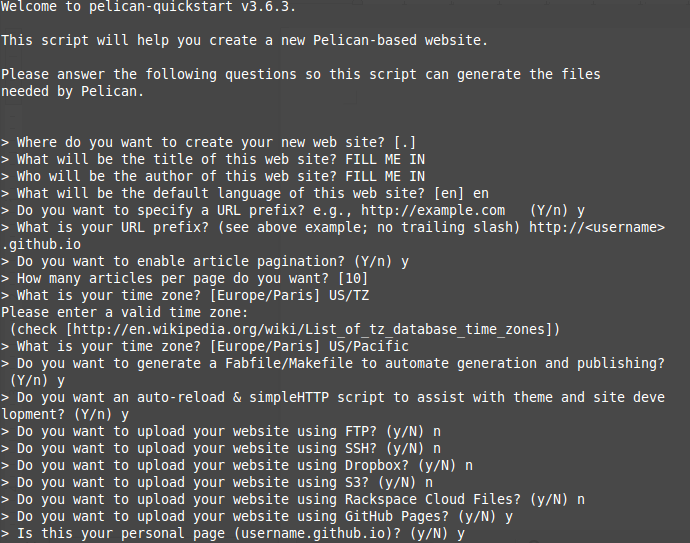
Add requirements.txt for Pelican blog build on Travis ~bash (echo pelican; echo markdown; echo fabric; echo beautifulsoup4; echo typogrify; echo pillow; echo webassets) >> requirements.txt ~
Create a .travis.yml file for Travis build ~bash branches: only: - master language: python python: - 3.5 install: - pip install -r requirements.txt –use-mirrors script: - make html notifications: email: on_success: always on_failure: always after_success: bash deploy.sh after_script: - git config credential.helper “store –file=.git/credentials” - echo “https://${GH_TOKEN}:@github.com” > .git/credentials ~
Connect Github and Travis-CI
In order to create the encrypted token, you can login to the Github web interface to get an Authentication Token, and then install the travis command line tool with:
Select your avatar in the top right of the screen Select settings Select Personal access tokens Select generate new token near upper right of the screen copy the token to a text editor
Select your avatar in the top right of the screen again Select integrations Select Travis CI Add to github account and authorize application
In the travis-ci.org web interface: Select your account name in the top right Refresh and flick the repository switch on for your .io-src repository
On Ubuntu you need ruby dev to install travis ~bash sudo apt-get install ruby1.9.1-dev sudo gem install travis ~
Inside <username>.github.io-src repository: ~bash travis encrypt GH_TOKEN=LONGTOKENFROMGITHUB –add env.global ~
The previous command leads to the folllowing prompt: “detected repository as <username>.github.io-src, is this correct?”
type yes
Then create a deploy.sh script and update the global variable with yours: ~bash #!/usr/bin/env bash BRANCH=master TARGET_REPO=<username/username.github.io.git> PELICAN_OUTPUT_FOLDER=output
echo -e “Testing travis-encrypt” echo -e “$VARNAME”
if [ “\(TRAVIS_PULL_REQUEST" == "false" ]; then
echo -e "Starting to deploy to Github Pages\n"
if [ "\)TRAVIS” == “true” ]; then git config –global user.email “
Create first commit for <username>.github.io-src repo ~bash git pull origin master git status git add . git commit -m “initial commit” git push origin master ~
Create blog repository
Then we can create the repository that will host the actual blog: create the <username>.github.io repository for the website (initialize with README.md for immediate cloning)
Make a post
deploy.sh will not run without an initial post. Pelican blog posts can be written in markdown or reStructuredText.
cd content/
touch first-post.md
Post follow the following format: ~bash Title: Date: Author: Category: ~
See Pelican documentation for additional information on using Pelican to generate a static site.
After writing an initial post, use pelican command to generate a static html webpage ~bash cd .. pelican content ~
Preview your site locally before pushing and building on Travis Other installation materials I’ve consulted suggest running the following commands in a new terminal. ~bash cd
Your site is running locally at port 8000 http://localhost:8000/
Commit your first post to <username>.github.io-src ~bash git status git add . git commit -m “added first post” git push origin master ~
Run deploy.sh file to build your blog with Travis ~bash chmod +x deploy.sh sh deploy.sh ~ Running sh deploy.sh creates the built_website folder that contains all website data, from .html pages to css stylesheets I receive an access denied/authentication error the first time deploy.sh executes
Add your <username>.github.io repository as the origin in built_website folder ~bash cd built_website git remote add http https://github.com/
Github defaults to Jekyll, a Ruby package, to format static .html sites. Because our blog is formatted with Pelican, we need to add a .nojekyll file to ignore Jekyll defaults ~bash touch .nojekyll git add .nojekyll ~
Commit the .nojekyll file to your <username>.github.io repository ~bash git commit -m “added .nojekyll file for formatting” git push origin master ~
Commit the .nojekyll file and built_website folder to your <username>.github.io-src repository
~bash cd .. git status git pull origin master git add built_website git commit -m “adding .nojekyll file and built_website folder” git push origin master ~ now run deploy.sh to build your website on Travis ~bash sh deploy.sh ~
Your website is available at username.github.io
Workflow for posts - Write post as .md and place in content folder - Run pelican content - Add and commit new posts to <username>.github.io-src repository - Use deploy.sh to automatically push <username>.github.io-src repository and build <username>.github.io website - Commit published posts from deploy.sh to <username>.github.io repository
References
- Pelican documentation
- notions and notes setup pelican blog post
- Automatically build pelican with Travis CI